End users can upload and use images in the xential|client. As an administrator, you define the position and maximum size of the image in the template using xential|manager. The end user can then select and add an image to the document directly from the xential|client.
Step-by-step guide in xential|studio
1
Edit a template in xential|studio.
2
Add an image to the Information tree.
3
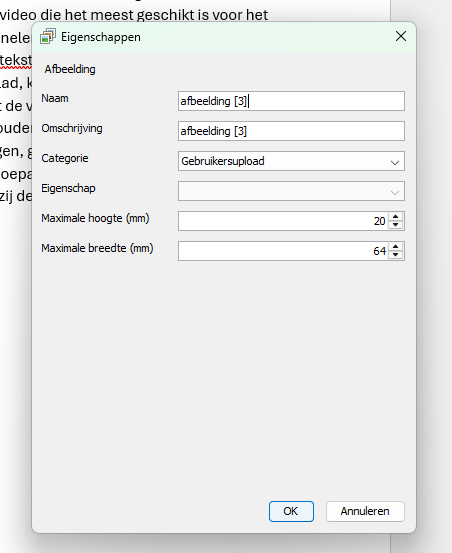
In the window that appears, define the image and select User upload as the Category.
4
Enter the desired height and width of the image.
5
Drag the image from the Information tree to the correct position in the template.
6
Save the template.
Step-by-step guide in xential|client (test)
1
Open the template in xential|client.
2
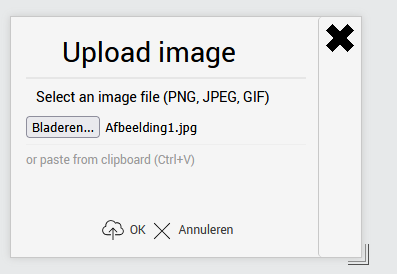
Click the Upload Imagebutton and select an image from your workstation.
3
Complete the remaining fields and click Build.
Result
The generated document contains the image selected by the end user, placed at the predefined position and with the configured dimensions.