When you open a template, header/footer or component for editing via xential|manager, Microsoft Word should open embedded in xential|studio. Sometimes this does not happen: xential|studio shows a grey screen and Microsoft Word opens in a separate window outside of xential|studio. This article describes how to resolve this. The solution depends on the Office version.
Solution for Microsoft Office 2003 to 2016
1
Close all Microsoft Word applications, including any active processes in Task Manager.
2
Open Microsoft Word with a blank document.
3
Go to the taskbar, open the display settings and check the option Optimise for compatibility.
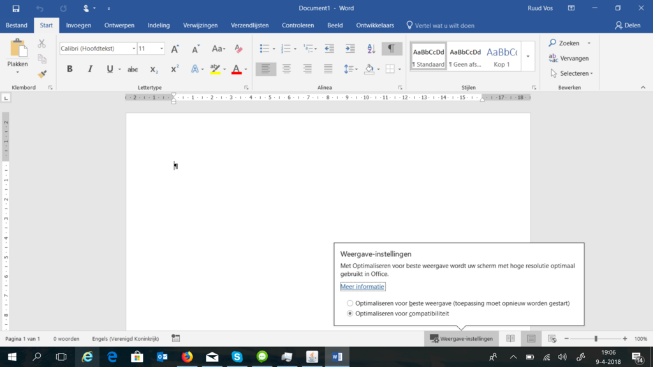
4
Close Microsoft Word and start xential|studio.
Solution for Microsoft Office 2019 and Office 365
1
Close xential and all Word documents, including any active processes in Task Manager.
2
Open Microsoft Word.
3
Go to Options > General > User Interface options.
4
Select the option Optimise for compatibility.
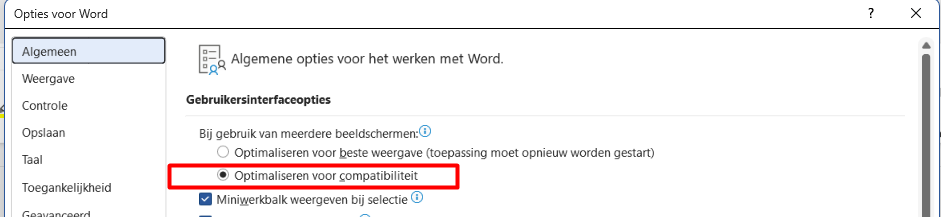
5
Click OK.
6
Go to Options > General > Start up options.
7
Uncheck the option Show the Start screen when this application starts.

8
Close Microsoft Word.
9
Open Task Manager > Details and end the process WINWORD.exe.
10
Start xential|studio.
Result
Microsoft Word now opens embedded in xential|studio again. You can edit templates, headers/footers and components in the usual way.