When xential|client is launched from another application, it is possible to intercept the Extensible Markup Language (XML). This is useful for analysing data, especially when specific data from the XML is not processed in the document as expected. Xential provides application administrators with a debug screen containing dedicated functions for this purpose.
Step-by-step guide
1
Launch xential|client from the other application.
2
Press the key combination Ctrl + Alt + D.
3
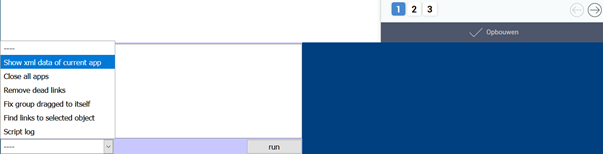
The debug screen appears at the bottom of the browser window.
4
At the bottom left, select the option Show xml data of current app.
5
Click Run.
6
A pop-up window appears displaying the contents of the XML.
7
Select the XML contents.
8
Copy the contents using right-click (Copy) or Ctrl + C.
9
Paste the copied text into a new file in Notepad++ or Notepad and begin analysing the data.
10
Close the debug screen by double-clicking the blue area on the right-hand side, or by refreshing the page.
Alternative method
Depending on the web browser, the shortcut Ctrl + Alt + D may not work. In that case, use the alternative method below.
1
Launch xential|client from the other application.
2
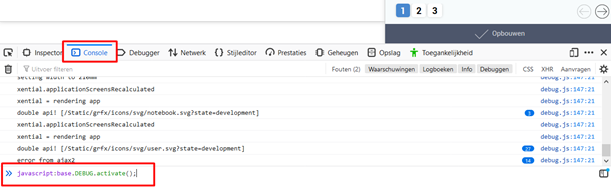
Press F12 to open the browser's developer tools.
3
Click the Console tab.
4
At the bottom of the console window, enter the following command: javascript:base.DEBUG.activate();
5
Press Enter. The debug screen appears at the bottom of the browser window.
6
Now follow steps 4 to 9 from the step-by-step guide above.
7
Close the debug screen by entering the command javascript:base.DEBUG.deactivate(); in the Console.