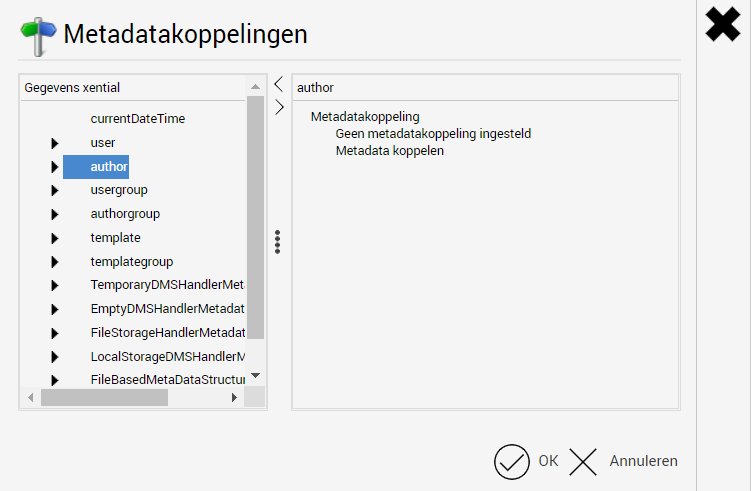
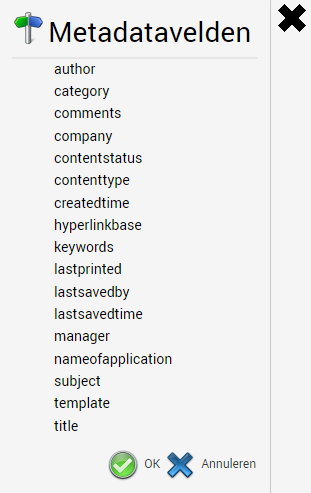
A metadata link is used to pass data from xential as metadata to another application. This can be used to fill a document property (such as author or subject) or to pass data to a connected integration. This article describes where you can configure metadata links, how to create them and how to remove them.
Where can you configure a metadata link?
A metadata link can be configured at various locations in xential|manager. The location determines when the link is applied:
- Settings: via Settings > Metadata links and the desired integration. The link is always applied, regardless of the document or user.
- User groups: the link is applied only when a user from this group generates a document.
- Users: the link is applied only when the specific user generates a document.
- Template groups: the link is applied for documents based on a template from this group.
- Templates: the link is applied for documents based on the specific template.
- Header and footer groups: the link is applied when a document includes a header or footer from this group.
- Headers and footers: the link is applied when a document includes the specific header or footer.
- Component groups: the link is applied when a document includes a component from this group.
- Components: the link is applied when a document includes the specific component.
Except for the main menu, you can access the metadata link option by right-clicking the relevant object.
Which data can you pass on?
The available data depends on the location where the metadata link is configured. At every location, at least these categories are available:
- Properties of the user or user group.
- Properties of the template group or template.
- The current date and time.
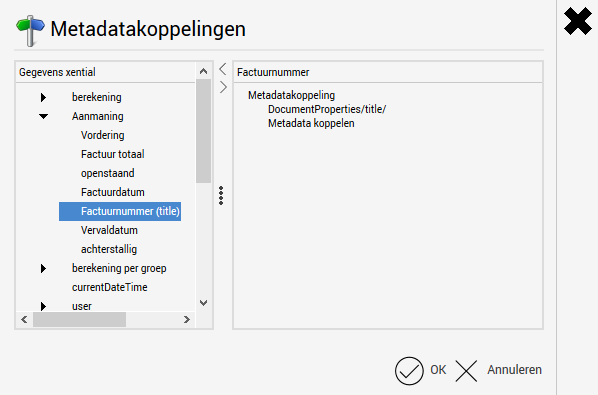
For templates, headers/footers and components, additional categories are available because these objects can contain questions or data sources (such as XML, queries or web service functions). The data from these sources can also be passed on.
A few examples:
- For a template, you can pass the answer to a question to another system.
- For a template group, you can pass the author's name whenever a user generates a document based on a template from that group.
- For a user group, you can pass the template name whenever someone from that group generates a document.
- For a component, you can pass the value of an XML field whenever a document containing that component is generated.
Creating a metadata link
The step-by-step guide below uses a template with questions as an example, but the same approach applies to other objects that support metadata links.