Documents generated with xential contain the standard document property Last modified by, which shows the name of the person who created or modified the template in xential|studio. The steps below adjust this property to, for example, a fixed hyphen (-) or another value.
This article describes a specific implementation of Option 2 from the overview article Managing document properties in xential.
Step-by-step guide
1
In xential|manager, go to Settings > Manage xential properties and add a category.
2
Apply this category to the desired templates or template groups.
3
Right-click the category and add a property.
4
Open the properties window of the relevant template or template group.
5
Enter a value for the added property (for example a hyphen).
6
In the properties window, click Document properties metadata links.
7
In the left pane (Xential data), under template or templategroup, link the added property to the metadata field lastsavedby in the right pane and click OK.
8
Open xential|client, complete the questions and build the document.
Result
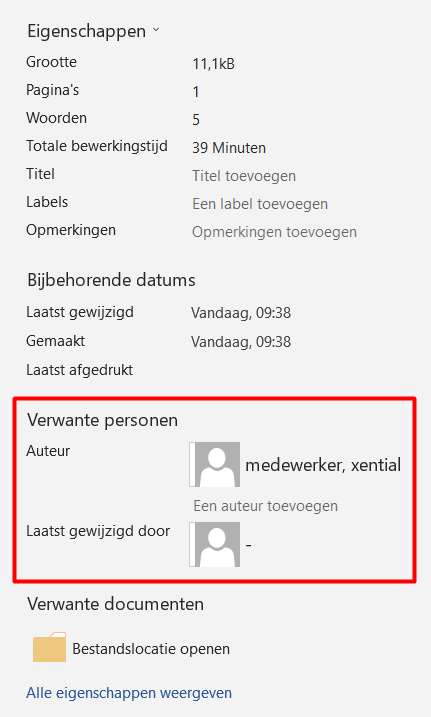
In Microsoft Word under File > Info, the Last modified by property now shows the entered value (for example a hyphen).