You can transfer objects from xential|manager to another xential environment using the export and import functionality. This is useful, for example, when you want to move templates or settings from a test environment to a production environment, or share changes with another xential instance.
Which objects can you export?
The following categories in xential|manager can be exported and imported:
- User groups and users.
- Template groups and templates.
- Header and footer groups and headers and footers.
- Component groups and components.
- Data sources, web service connections, XML connections and queries.
- Fonts, corporate styles and their related groups.
Exporting an object
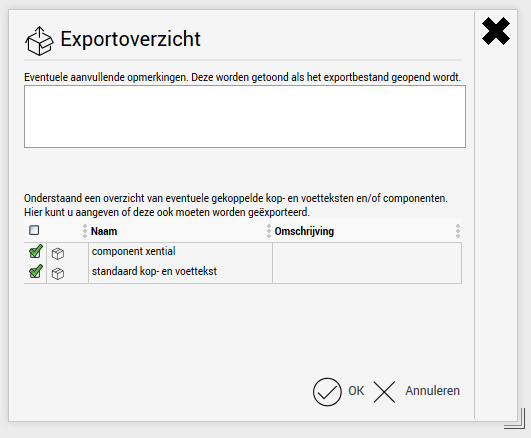
Importing an object
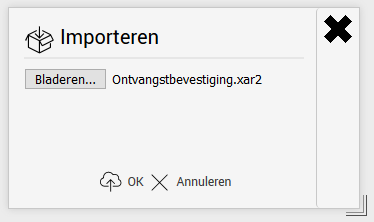

Import options
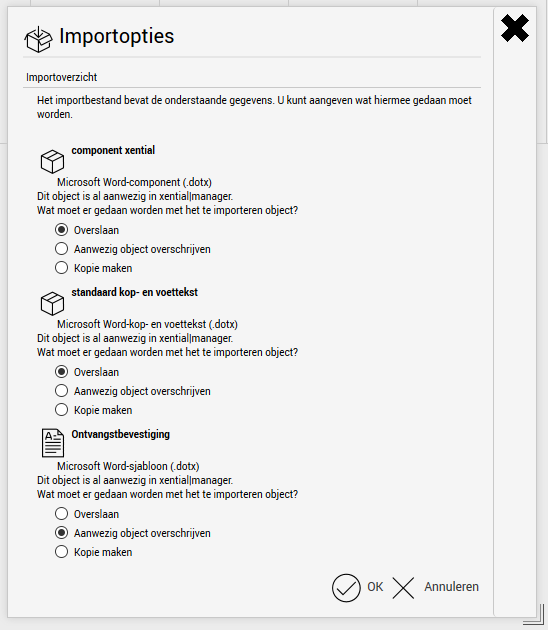
If an object already exists in xential, you can choose what should happen to it on a per-object basis:
- Skip: the object from the export file is skipped. The existing object in xential|manager remains unchanged.
- Overwrite existing object: the existing object in xential|manager is replaced by the object from the export file.
- Create copy: the object from the export file is added as a new copy alongside the existing object.
If an object does not yet exist in xential, you can use Browse to select the target folder where the object should be placed.
Importing larger structures
It is possible to export multiple objects along with their groups and any subgroups at once. The export file then contains the full tree structure of these groups and their contents. To import this structure, repeat the import procedure multiple times: the first time, the groups are imported; from the second time onwards, the contents are added. Xential|manager automatically recognises the existing groups and suggests placing the object in the correct location.
Including parent groups in an export
When exporting an object (for example a template), you can specify that the parent groups should be included automatically. Not only the object's immediate group is exported, but also the full tree structure of groups above it.
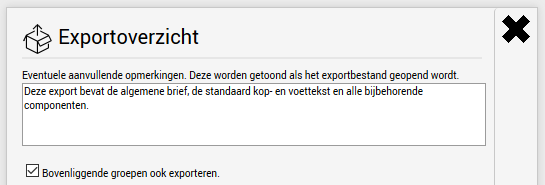
When importing, the administrator can choose to import not only the exported object but also its associated groups. If the object is linked to a header/footer and/or components, the groups containing those items will also be included.
Tip
Do you want to export multiple main folders that are interrelated? Then perform a separate export per main folder and import them from the lowest level upwards in the following order:
- First Components.
- Then Headers and footers.
- Finally Templates.
This ensures that underlying objects are already present when higher-level objects refer to them.
Important
- If a template contains a reference to a data source, the data source itself is not automatically included. Export and import the data source in a separate export file.
- For security reasons, connection settings are not included when a database data source is exported. Reconfigure these manually in the target environment.
- After importing a database data source, always perform a connection test to verify that the database is accessible from the xential environment.