When using a large monitor or multiple monitors, the letters and characters in the information tree on the right side of xential|studio may appear very small. This article describes the cause and how to resolve it.
Cause
The issue is related to the resolution of the screen on which xential|studio is displayed. Xential currently does not fully support all higher screen resolutions, which causes the information tree to be displayed smaller than intended on such screens.
Step-by-step guide
By setting a different screen as the main display in Windows, xential|studio will be shown at the correct resolution.
1
Close xential|studio.
2
In Windows, open Display settings.
3
In the overview, select the monitor with the lowest resolution.
4
Select the option Make this my main display.
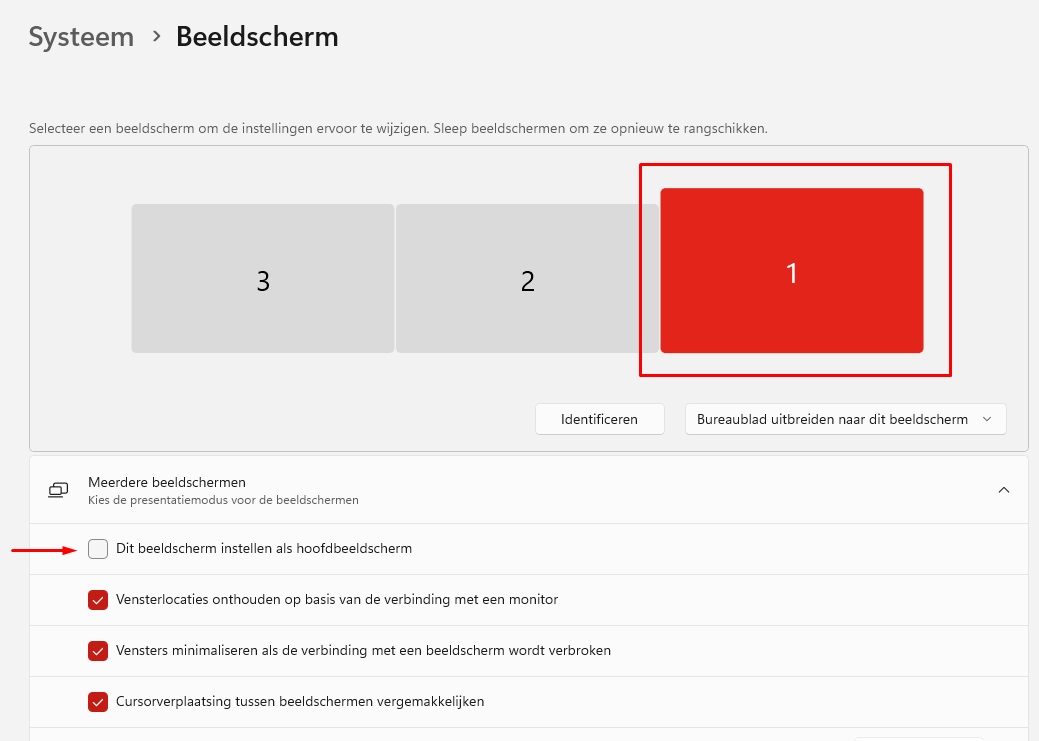
5
Open xential|studio again.
Result
The information tree in xential|studio is now displayed at a readable size.