In xential|studio, you can set different font sizes per column within a single table. For example: in a table with 4 columns, you may want columns 1 and 3 to be displayed in Arial 9, while columns 2 and 4 use Arial 10. This is done by creating your own table and paragraph styles and applying them to the desired columns.
Step-by-step guide
1
In xential|studio, create a table with the desired dimensions (for example 4 columns and 5 rows). This can be in a template, component or header/footer.
2
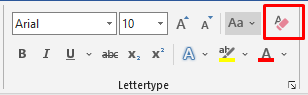
Select the entire table and clear all existing formatting using the shortcut Ctrl + Spacebar.
3
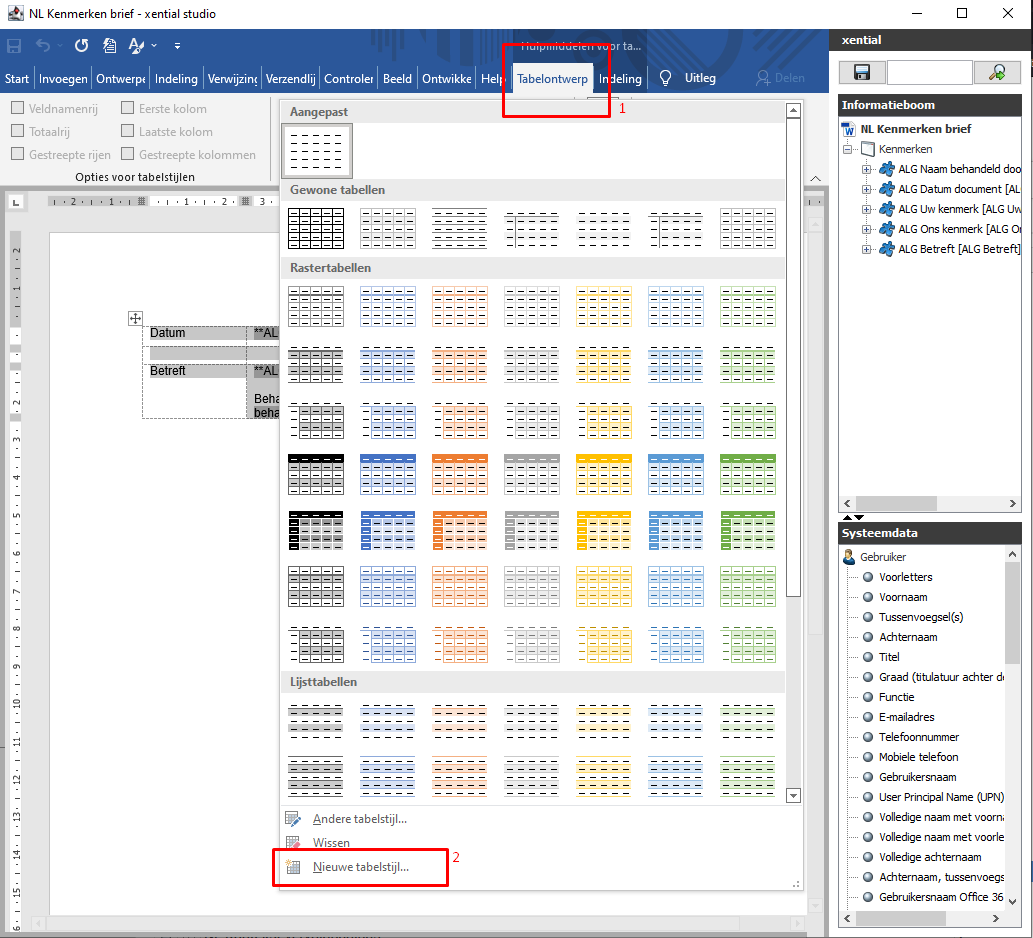
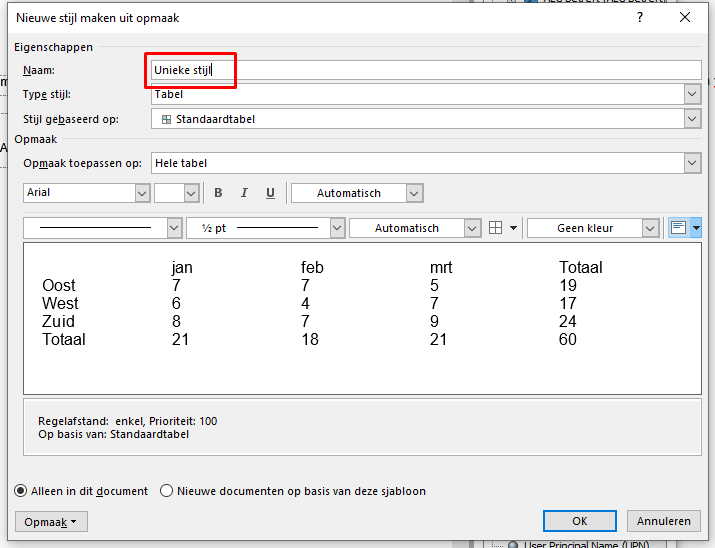
Create a new table style and give it a unique name that does not already exist in the header and footer.
4
Select the table and apply the newly created table style.
5
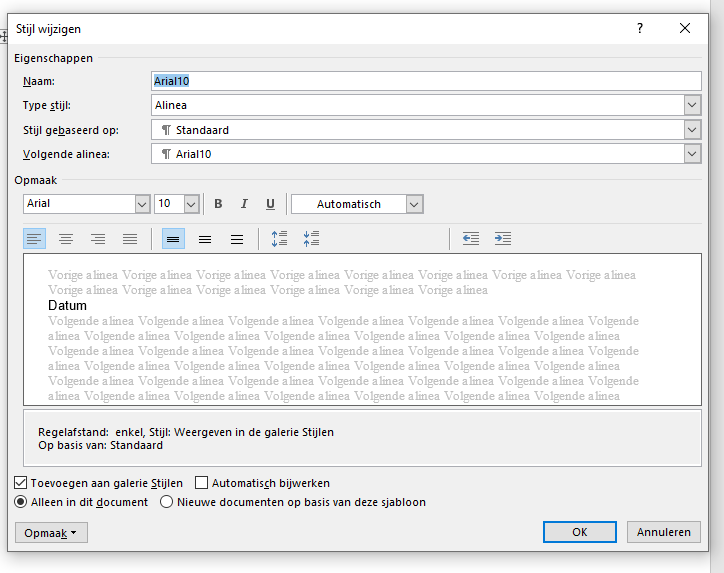
Go to Home > Styles and create two new paragraph styles: one named Arial9 (Arial, font size 9) and one named Arial10(Arial, font size 10).
6
Select column 1 and apply the Arial9 style. Do the same for column 3.
7
Select column 2 and apply the Arial10 style. Do the same for column 4.
8
Save the template.
Result
The table now displays columns 1 and 3 in Arial 9, and columns 2 and 4 in Arial 10. Using this method, the font sizes are correctly preserved when the document is generated.
Important
The formatting of the header and footer takes precedence over the template. Always give the table style a unique name that does not already exist in the header and footer to avoid conflicts.